Google Login with Embedded Wallets
Google Sign-In is a widely adopted authentication method that allows users to log in using their existing Google accounts. Embedded Wallets supports Google as a social login provider, enabling seamless onboarding and authentication experiences for users with Google credentials.
To integrate Google Sign-In with Embedded Wallets, developers must first configure a Google OAuth 2.0 Client ID in the Google Cloud Console.
Step 1: Create a Google app
-
Follow Google’s instructions to set up an OAuth 2.0 app.
-
Paste the following URI as a redirect URI into the "Authorized redirect URIs" field.
https://auth.web3auth.io/auth
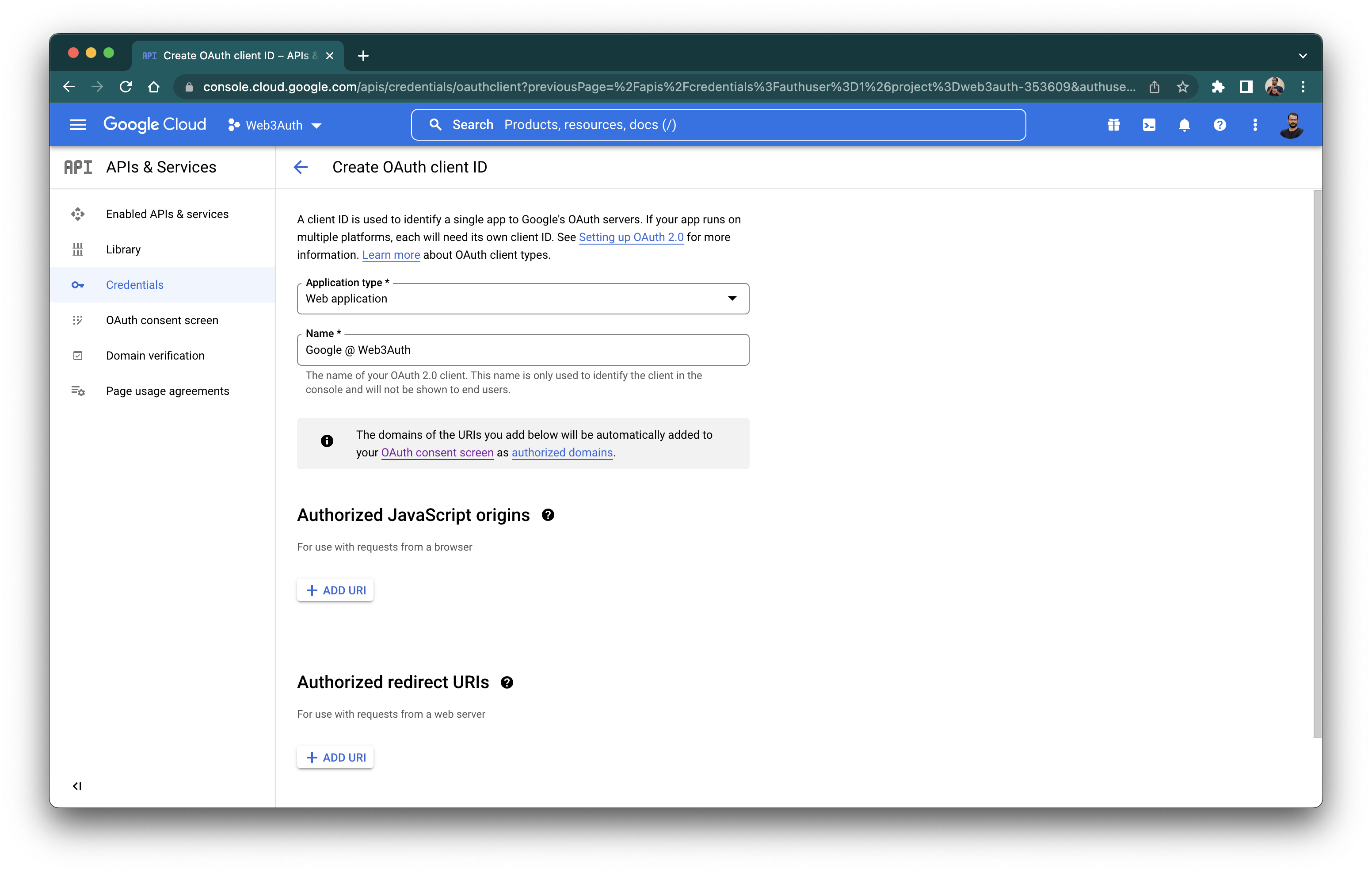
-
Obtain the OAuth
Client IDfrom the App on the Google Developer dashboard
Step 2: Create a Google connection
To use this feature, please enable Google from the Social Connections section in the dashboard.
By default, Web3Auth uses its own pre-configured credentials for Google login.
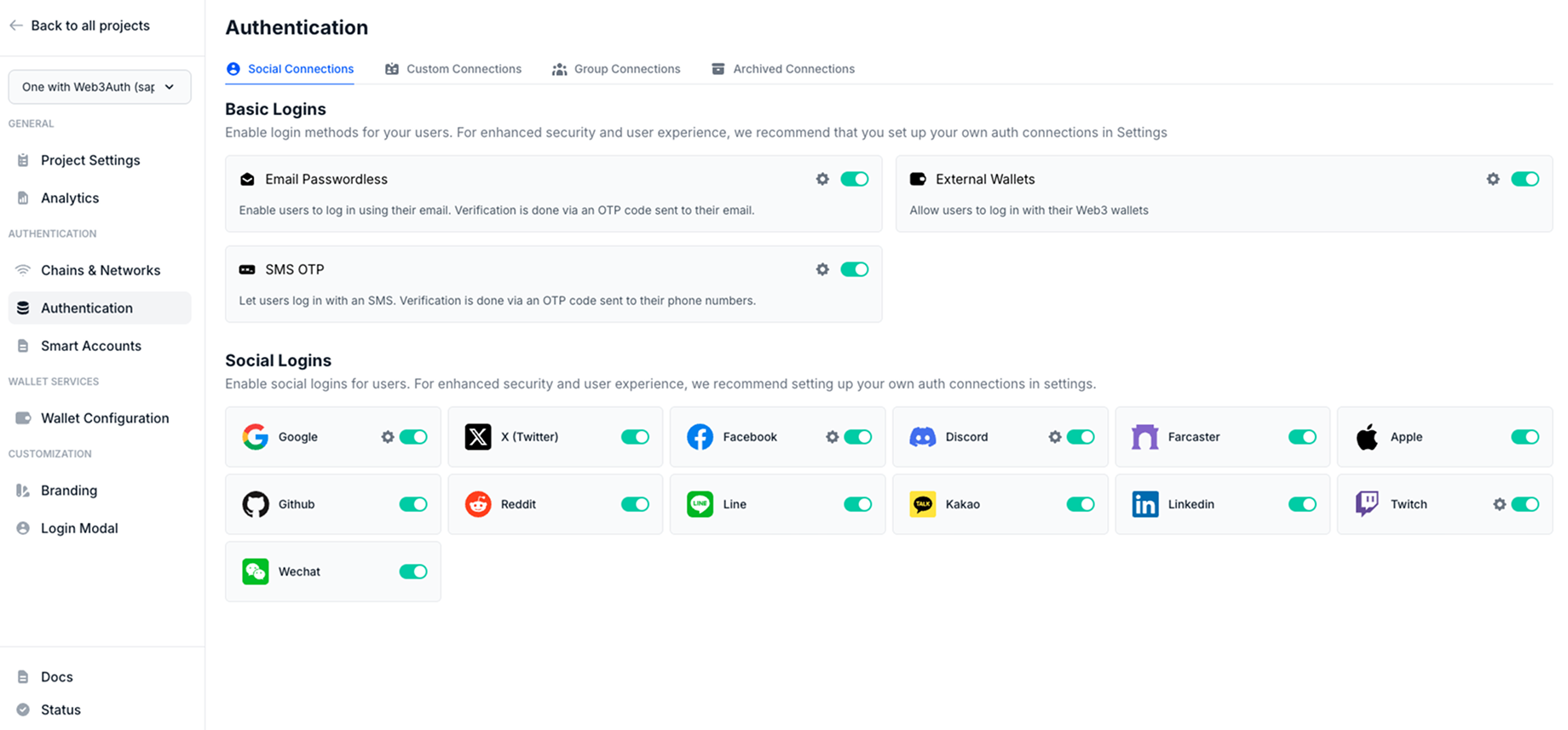
Follow these steps to create a Google connection:
- Visit the Embedded Wallets Dashboard.
- Go to the Social Connections section.
- Click on the Settings icon near the Google connection.
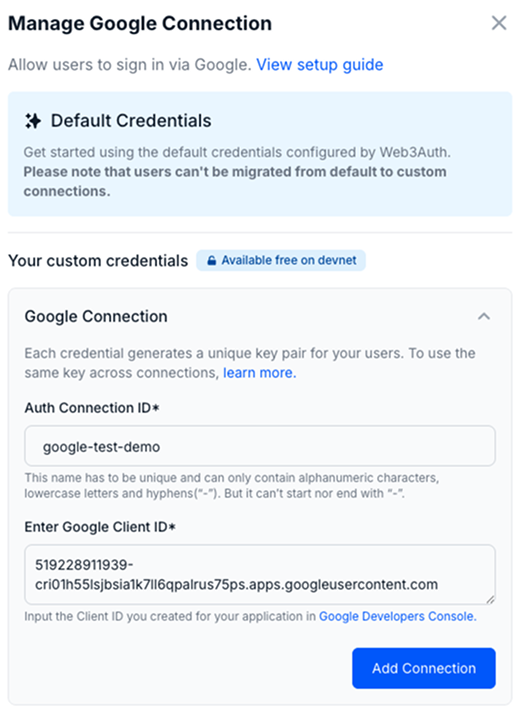
- Enter the
Auth Connection ID. - Enter the
Google Client ID. - Finally, click on the Add Connection button.
Usage
Since, the Google connection details are available from the dashboard, developers don't need to pass any additional parameters to the Web3AuthProvider.
Follow our quickstart to set up the basic flow.
- Implicit Login
- JWT Login with Google SDK
await connectTo(WALLET_CONNECTORS.AUTH, {
  authConnection: AUTH_CONNECTION.GOOGLE,
  authConnectionId: "w3a-google-demo",
});
const loginWithGoogle = async (response: CredentialResponse) => {
  const idToken = response.credential;

  await connectTo(WALLET_CONNECTORS.AUTH, {
    authConnectionId: "w3a-google-demo",
    authConnection: AUTH_CONNECTION.GOOGLE,
    idToken,
    extraLoginOptions: {
      isUserIdCaseSensitive: false,
    },
  });
};

...

<GoogleLogin
  onSuccess={loginWithGoogle}
  onError={() => {
    console.log("Login Failed");
  }}
  useOneTap
/>